

Swapping Products
Swapping lets you change a product on a subscription to a different option — for example, moving a customer from a “Full Bowl” plan to a “Half Bowl” plan. When the product is a Build Your Own box, the swap also handles re-selecting the box contents.
How to Swap a Product
Section titled “How to Swap a Product”1. Open the Subscription Editor
Section titled “1. Open the Subscription Editor”Navigate to the customer’s subscription in the Gro dashboard and click Edit Items.
2. Click the Swap Icon
Section titled “2. Click the Swap Icon”Each eligible item displays a swap icon (↔) to the right of the quantity controls. Click this icon to begin the swap.

3. Choose a Swap Option
Section titled “3. Choose a Swap Option”A panel appears showing the available products you can swap to, with the product name, variant, and price for each option.
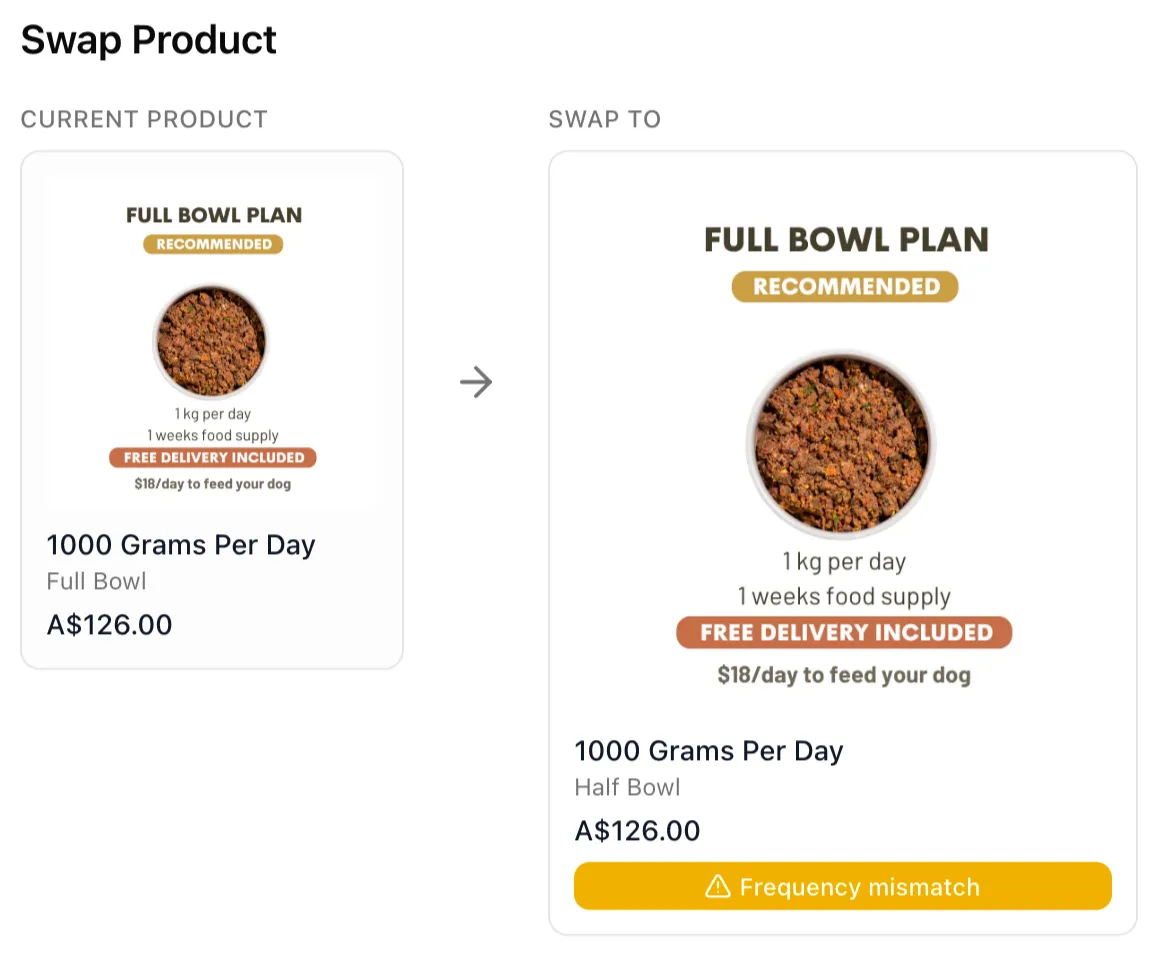
If a Frequency mismatch warning appears, it means the subscription’s delivery frequency will be updated to match the new product. This is normal — it ensures the subscription stays valid after the swap.
4. Confirm Box Contents
Section titled “4. Confirm Box Contents”For Build Your Own products, you’ll be asked to confirm the box contents after selecting a swap option.
The new box will be pre-filled to match what was in the old one. Review and adjust the selection as needed, then press Confirm Swap.
5. Save Changes
Section titled “5. Save Changes”The swap appears as a pending change in the editor. Review the summary, then press Save Changes to apply.