

Designing your portal
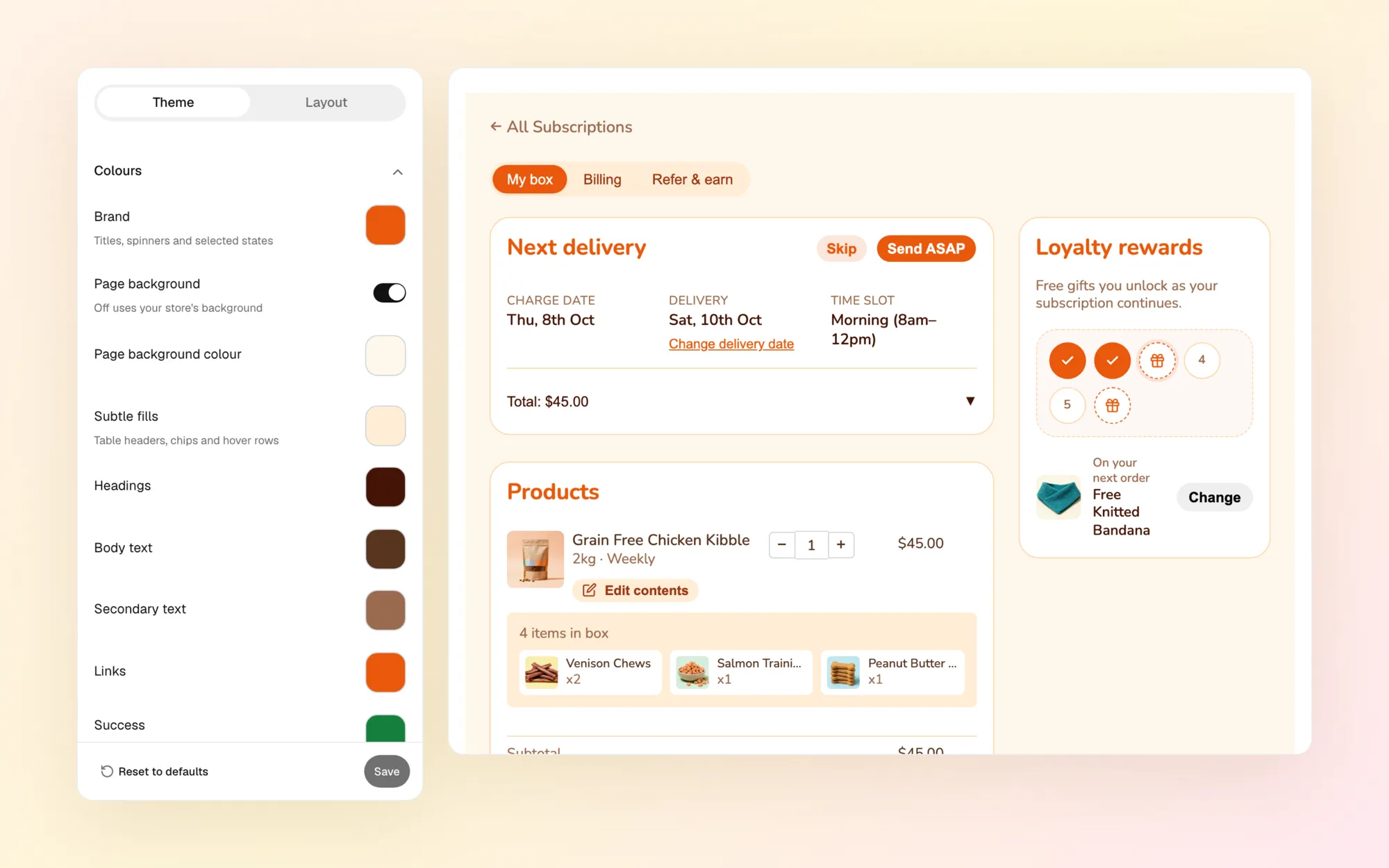
Your customers come back to the portal every week to skip, swap, pause and manage their box. It should feel like part of your store, not a plugin. Under Storefront → Customer portal → Design you control how it looks and what’s on every tab, and a live preview shows each change on your own products before anything goes live.
Why it matters:
- On brand everywhere. The portal uses your colours, font and button style, so customers never feel they’ve left your store.
- The right things first. Put what matters to your customers, like their next delivery or loyalty rewards, front and centre, and move or remove the rest.
- Built around your business. Name tabs in your own words (“My box”, “Billing”, “Refer & earn”), add tabs for your own widgets, and drop what you don’t use.
- No risk. Customers can always update their card and cancel, and nothing changes until you save.
The editor at a glance
Section titled “The editor at a glance”The left panel has two tabs, Theme and Layout. The right side is a live preview of a sample subscription using your real products.
- Desktop / Mobile switches the preview between a laptop and a phone.
- Force widgets shows all your widgets, even ones whose visibility condition doesn’t match the sample subscription. It’s on by default. Turn it off to see only the widgets that match.
- Preview picks the state of the sample subscription: Active, Order on its way, Payment failed, Paused, or Cancelled (with or without your winback offer). The preview jumps to the tab where that state shows, so you can check every moment customers might see.
- Click a tab in the preview to select it in the Layout panel.
- Save puts your changes live. Discard throws away unsaved changes. Reset to defaults goes back to the standard look and layout (save to keep it).
If you try to leave with unsaved changes, Gro asks before you lose them.
Theme: how the portal looks
Section titled “Theme: how the portal looks”Every setting shows in the preview as you change it.
Colours
Section titled “Colours”| Setting | What it changes |
|---|---|
| Brand | Accents: badges, spinners and selected states |
| Page background | The portal’s background. Turn it off to use your store’s own background |
| Subtle fills | Table headers, chips and hover rows |
| Headings | Card titles and names, like your pet’s name |
| Body text | Everyday text, plus values like dates and totals |
| Secondary text | Labels like Charge date and Subscription for, hints and small print |
| Links | Text links like Change delivery date |
| Success | Confirmations and “paid” badges |
| Winback offer | The offer shown to cancelled customers to come back. Preview Cancelled to see it |
| Alerts | The border of the payment failed and cancelled messages |
| Paused | The border of the paused message |
| Focus ring | The outline around a button or field when it’s selected with the keyboard |
Buttons
Section titled “Buttons”Primary and secondary button background and text colours, plus corner radius, from square corners to fully rounded.
The tabs along the top of the subscription page. By default they’re rounded pills.
| Setting | What it changes |
|---|---|
| Background | The bar behind the tabs |
| Active tab background | The tab that’s open |
| Text | Tab names |
| Active tab text | The open tab’s name |
| Corner radius | From square to fully rounded |
| Text size | How large the tab names are |
On a phone, tabs that don’t fit scroll sideways, and the edge fades out so customers know there are more.
Cards and borders
Section titled “Cards and borders”| Setting | What it changes |
|---|---|
| Card background | Every card’s colour |
| Border colour | Card borders and dividers |
| Add extras background | The add extras card. Turn it off to use a soft tint of your brand colour (default) |
| Card corner radius | How rounded cards are |
| Border width | From no border to a bold one |
Loyalty rewards
Section titled “Loyalty rewards”| Setting | What it changes |
|---|---|
| Badge | The earned and gift badges on the rewards card. Off uses your brand colour |
| Badge tick | The tick on earned badges. Off uses your primary button text colour |
Typography
Section titled “Typography”Pick a font (Barlow, Inter, DM Sans, Poppins, Lora, Playfair Display and more) or Match my store theme to use your store’s own font. Then set the sizes:
| Setting | What it changes |
|---|---|
| Title size | Card titles like Next delivery. Other titles grow and shrink with it |
| Title weight | From regular to bold |
| Body text size | Everyday text, prices and form fields |
| Small text size | Labels, hints, badges and small print |
| Button text size | Text on buttons |
Layout: tabs and blocks
Section titled “Layout: tabs and blocks”The subscription page is made of tabs, and each tab has a main column and a sidebar of blocks. A block is one card, like Next delivery or Payment method. You decide which tabs exist and which blocks go where.
Managing tabs
Section titled “Managing tabs”- Add a tab: click Add tab under the tab list. You can have up to 10.
- Rename a tab: select it and type a new Tab name, e.g. “My box” or “Billing”.
- Reorder tabs: drag them by the handle. The first tab is where customers land.
- Delete a tab: select it and click the bin. Its blocks come off that tab. If Payment method or Manage subscription was only on that tab, it moves to your first tab. The portal always keeps at least one tab.
A tab only shows to a customer when it has something for them. For example, a tab holding only referral blocks stays hidden while referrals are off, and a tab holding only a puppy widget doesn’t show on a cat subscription.
Arranging blocks
Section titled “Arranging blocks”Select a tab to see its Main column, Sidebar and the blocks that are Not on this tab.
A block can go on as many tabs as you like, once per tab. For example, put Add extras on your first tab and on a “Shop more” tab. A block on more than one tab says which other tabs it’s on.
- Drag a block between the main column, the sidebar and Not on this tab.
- Add a block: drag it from Not on this tab into a column. Any other tabs showing it keep their copy.
- Copy to another tab: use the ⋯ menu on a block, then Copy to.
- Move to another tab: use the ⋯ menu, then Move to.
- Remove a block from a tab: drag it to Not on this tab, or use Remove from this tab in its menu. Other tabs keep their copy.
When a tab has no sidebar blocks, its main column uses the full width.
The blocks you can place
Section titled “The blocks you can place”| Block | What customers see | Shows when |
|---|---|---|
| Order on its way | Paid orders still to arrive, with delivery date and tracking | An order is on its way |
| Subscription for | Who the box is for, like a pet’s name | The subscription has someone it’s for |
| Next delivery | The next charge and delivery dates, with skip and send now | The subscription is active |
| Products | What’s in the subscription, and the box contents | Always |
| Loyalty rewards | Free gifts they’re working towards | Not cancelled |
| Add extras | Extra products they can add to their subscription | Not cancelled |
| Refer a friend | Their referral link and offer | Referrals are on |
| Referral history | Friends they’ve referred and rewards earned | Referrals are on |
| Payment method | Their card, with the option to update it | Always (required) |
| Manage subscription | Pause and cancel | Not cancelled (required) |
| Payment history | Past charges | Always |
| Delivery schedule | How often it arrives, the time slot and instructions | Always |
| Delivery address | Where it ships, with the option to change it | An address is saved |
| Orders | Past and upcoming orders | Always |
| Banners | Your banners, a carousel for 2+ | A banner is on |
| Your widgets | Anything your own widgets show | The widget’s visibility condition fits |
What stays put
Section titled “What stays put”Status messages always show at the top of your first tab, above your blocks: payment failed, subscription paused, and subscription cancelled (with your winback offer).
Order on its way is a block like any other. It starts at the top of your first tab, but you can move it anywhere, for example under Next delivery or onto an Orders tab.
Links to a tab
Section titled “Links to a tab”Links into the portal can open a specific tab, for example the “update your payment details” link in a payment failed email. These links open the tab that holds the right block, even after you’ve renamed or moved things. A payment link always lands where Payment method is.
Ideas to try
Section titled “Ideas to try”- A simpler home tab. Keep Next delivery, Products and Add extras on the first tab, and move Payment history and Orders to a “My account” tab.
- Rewards up front. Put Loyalty rewards at the top of the sidebar so customers see how close they are to their next gift.
- Grow referrals. Put Refer a friend on your first tab’s sidebar so every visit shows the offer.
- Make widgets feel built in. Give a widget its own tab, like “Puppy Club”, and it only appears for subscriptions it’s meant for.
- Fewer tabs on mobile. Move the Delivery details and Payment details blocks onto one “Account” tab and delete the other, so phone users have less to scroll.
Questions
Section titled “Questions”Will my customers see changes straight away? Only once you click Save.
What happens to my settings from before? They carry over. If you’d turned off the Orders or Payment details tab, those tabs simply aren’t in your layout, and blocks you’d hidden are under Not on the page.
Can I undo a change? Before saving, click Discard. After saving, change it back and save again, or use Reset to defaults to start over.
Does the preview use real customer data? No. It uses a sample subscription with your real products, so nothing a real customer does is shown, and nothing you do in the preview changes anything.
Can widgets match my theme? Yes. Widgets get your theme’s colours, font and radius automatically. See Styling your widgets.
What about the build a box wizard? It has its own design settings under Storefront → Build a box wizard → Design.