

Delivery methods
Every subscription is delivered one of three ways, set by the customer at checkout:
| Method | What it means |
|---|---|
| Shipping | Sent with a carrier, using one of your Shopify shipping rates. |
| Local delivery | Delivered by you, to addresses inside your Shopify local delivery zone. |
| Pickup | Collected by the customer from one of your pickup locations. |
The options and their prices come from Settings → Shipping and delivery in Shopify. Gro doesn’t have its own rates: if you change a rate or a zone in Shopify, that’s what Gro offers next time.
Where you see it
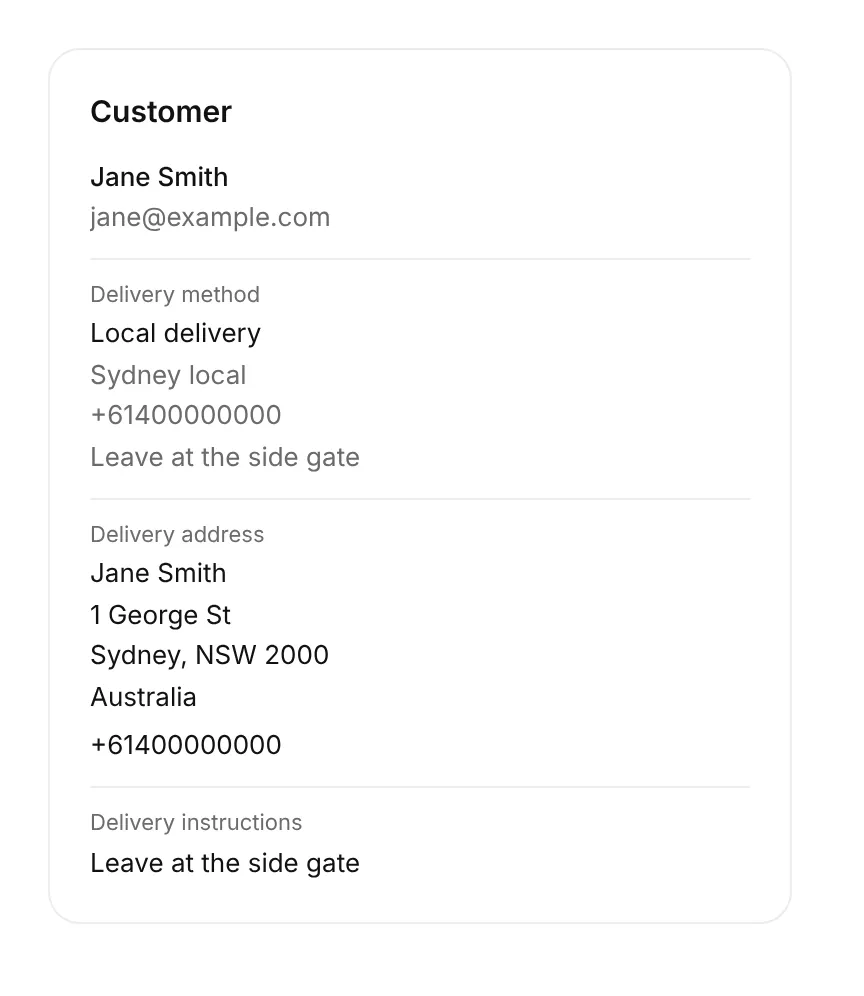
Section titled “Where you see it”On the subscription page, the customer card shows the method, the rate name, and for local delivery the phone number and instructions the driver gets.
In the order totals, the delivery row names the method and rate next to what it costs.
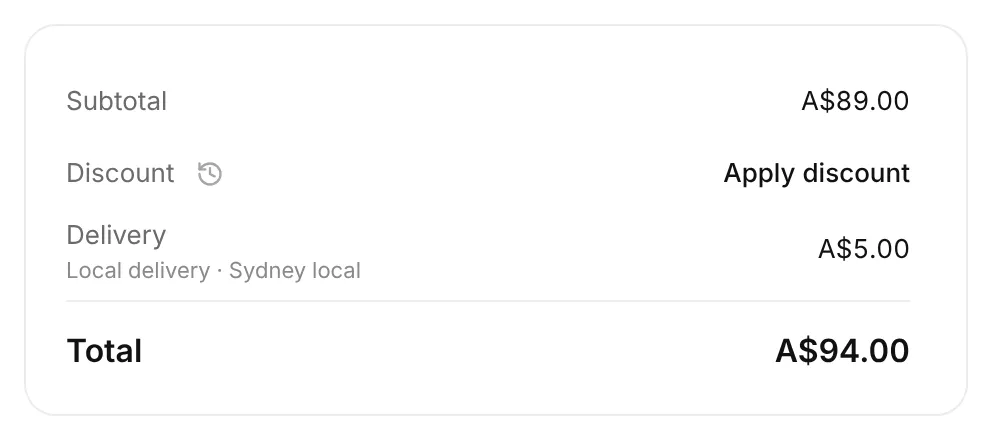
If either says Not synced, Gro hasn’t read that subscription’s method from Shopify yet. It’s still delivered the way the customer chose, Gro just can’t show it. It fills in on the next sync.
In the subscriptions list, filter by Delivery method to find every local delivery or pickup subscription, or the ones not synced yet.
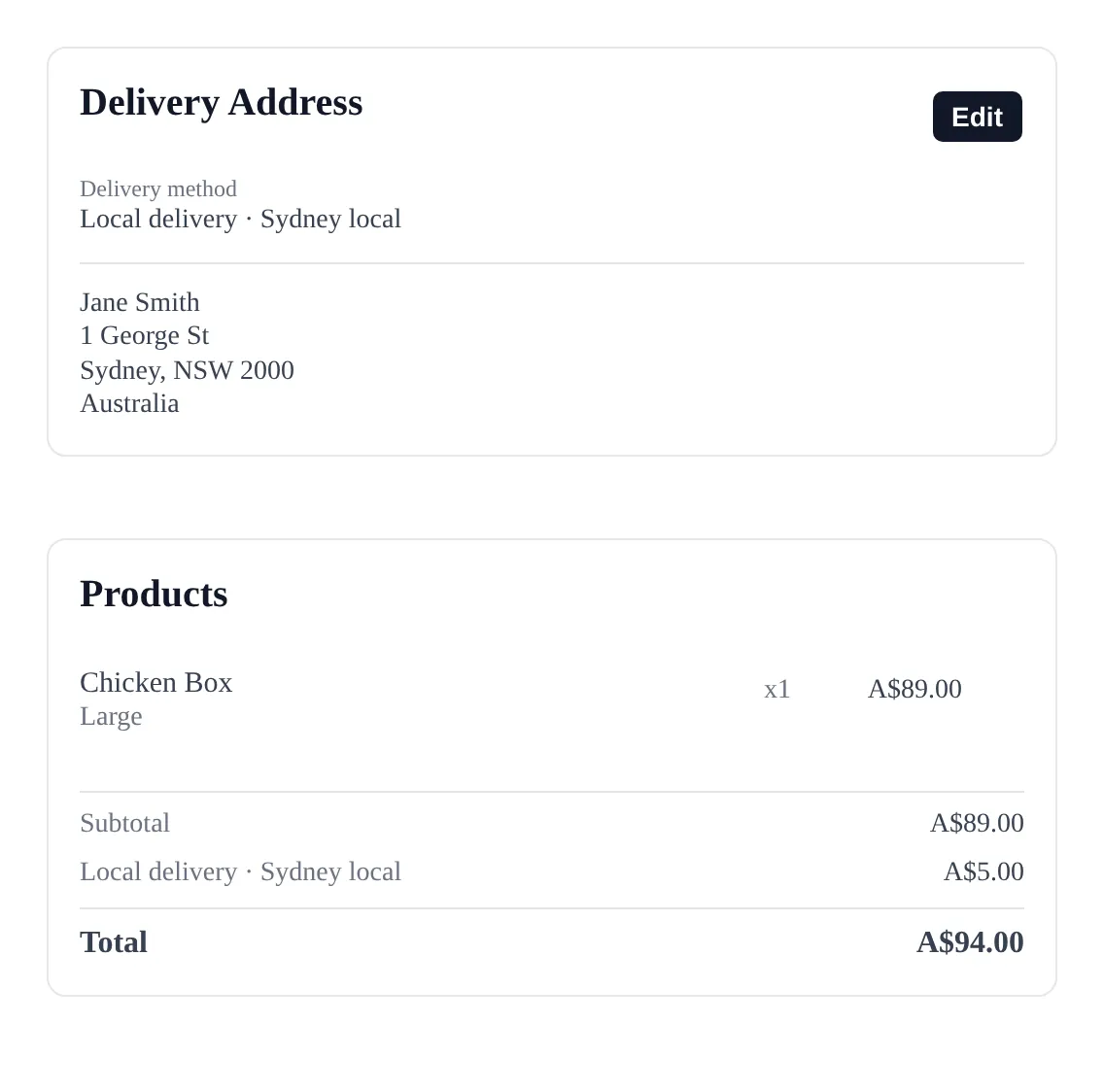
In the customer portal, your customers see their method above their address, and in the totals.
Changing the delivery method
Section titled “Changing the delivery method”Use this when a customer asks to switch, for example from local delivery to shipping while they’re away.
-
Open the subscription.
-
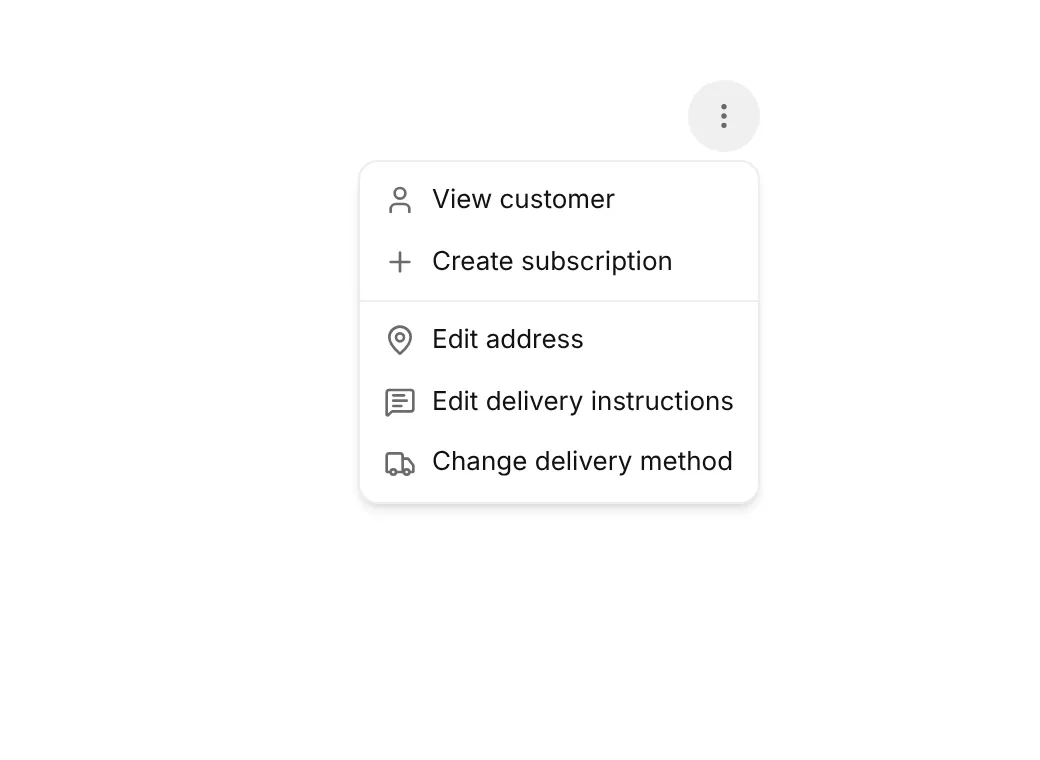
In the customer card, open the ⋮ menu and pick Change delivery method.
-
Gro asks Shopify what it offers at the subscription’s address and lists each option with its price. The method it’s on now is marked Current.
-
Pick one. For local delivery, check the phone number (the driver uses it) and add any instructions.
-
Check the Delivery price. It starts at Shopify’s price. Change it to charge something else, for example
0for free delivery as a goodwill gesture. -
Press Save.
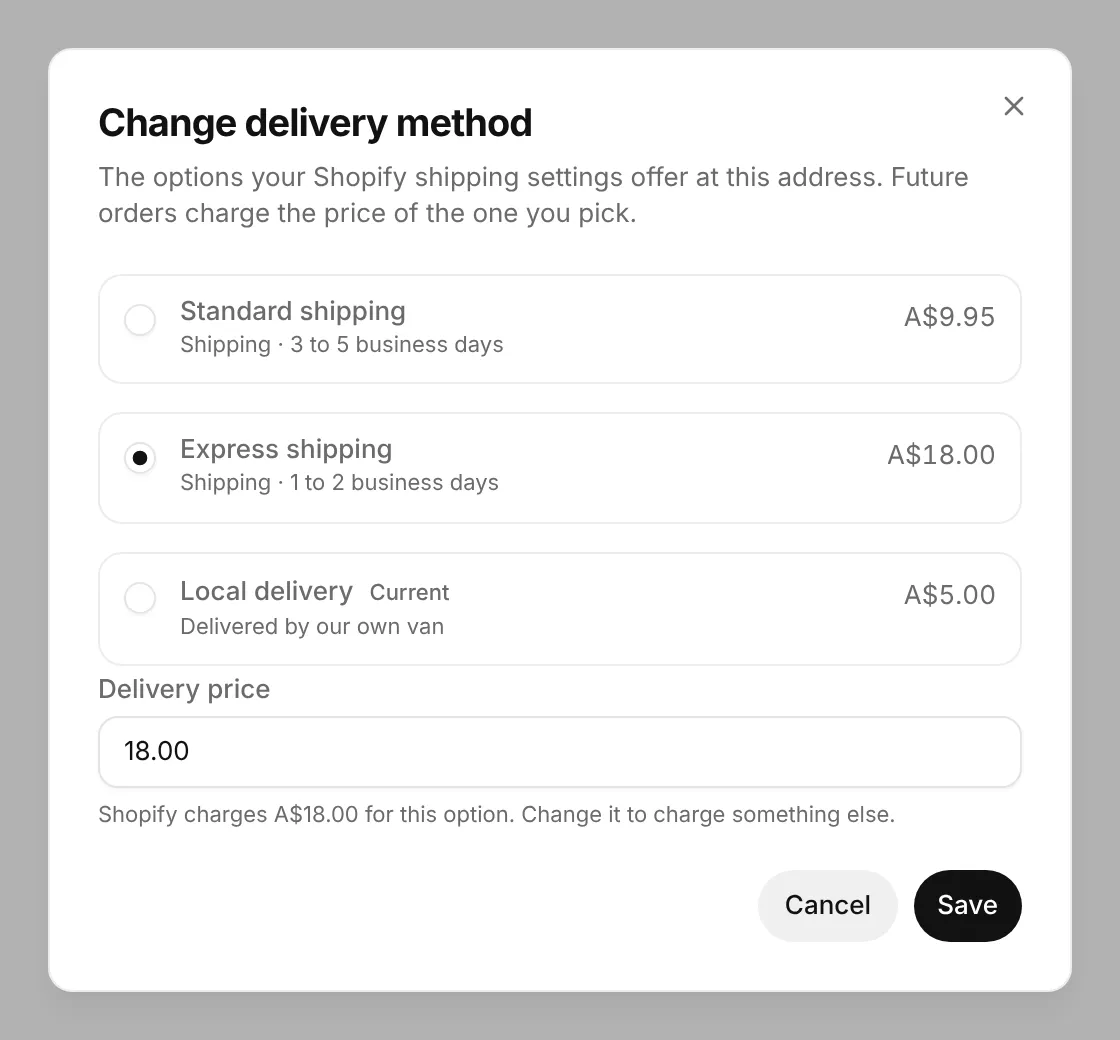
The change is saved on the Shopify contract straight away, and every future order uses the new method and price. It’s recorded in the subscription’s activity, with Shopify’s price too if you set your own.
When you can’t change it
Section titled “When you can’t change it”- The subscription is cancelled, or has no delivery address. Add the address first.
- It has a free delivery discount. The discount holds delivery at 0, so remove it (or let it end) first.
- Local delivery with no phone number. Add one in the dialog.
- The option has gone. If someone changed your Shopify settings while the dialog was open, Gro says so and nothing changes. Open it again to see what’s offered now.
Pickup isn’t offered in this list yet. Subscriptions already on pickup stay on pickup until their address changes.
When a customer moves
Section titled “When a customer moves”This is the part that matters most for local delivery. Before, if a local delivery customer moved outside your zone, the address saved but the order couldn’t be routed to any location, and it was held on billing day.
Now every address change, in the dashboard or the portal, checks the method against the new address first:
| At the new address | What happens |
|---|---|
| The current method is still offered | The address saves exactly as before. Same method, same price. Nothing new to do. |
| It isn’t (for example out of your local zone) | Nothing is saved yet. Gro shows the options Shopify offers there and asks to pick one. |
| Nothing is offered at all | Gro says you don’t deliver there and nothing is saved. Check your Shopify shipping zones. |
| Shopify can’t be reached | The address saves as before, so a Shopify outage never blocks a customer moving. |
In the dashboard
Section titled “In the dashboard”After Save address, the dialog moves to a second step listing the options at the new address, with the Delivery price field. Pick one and press Save address again. The address and new method save together.
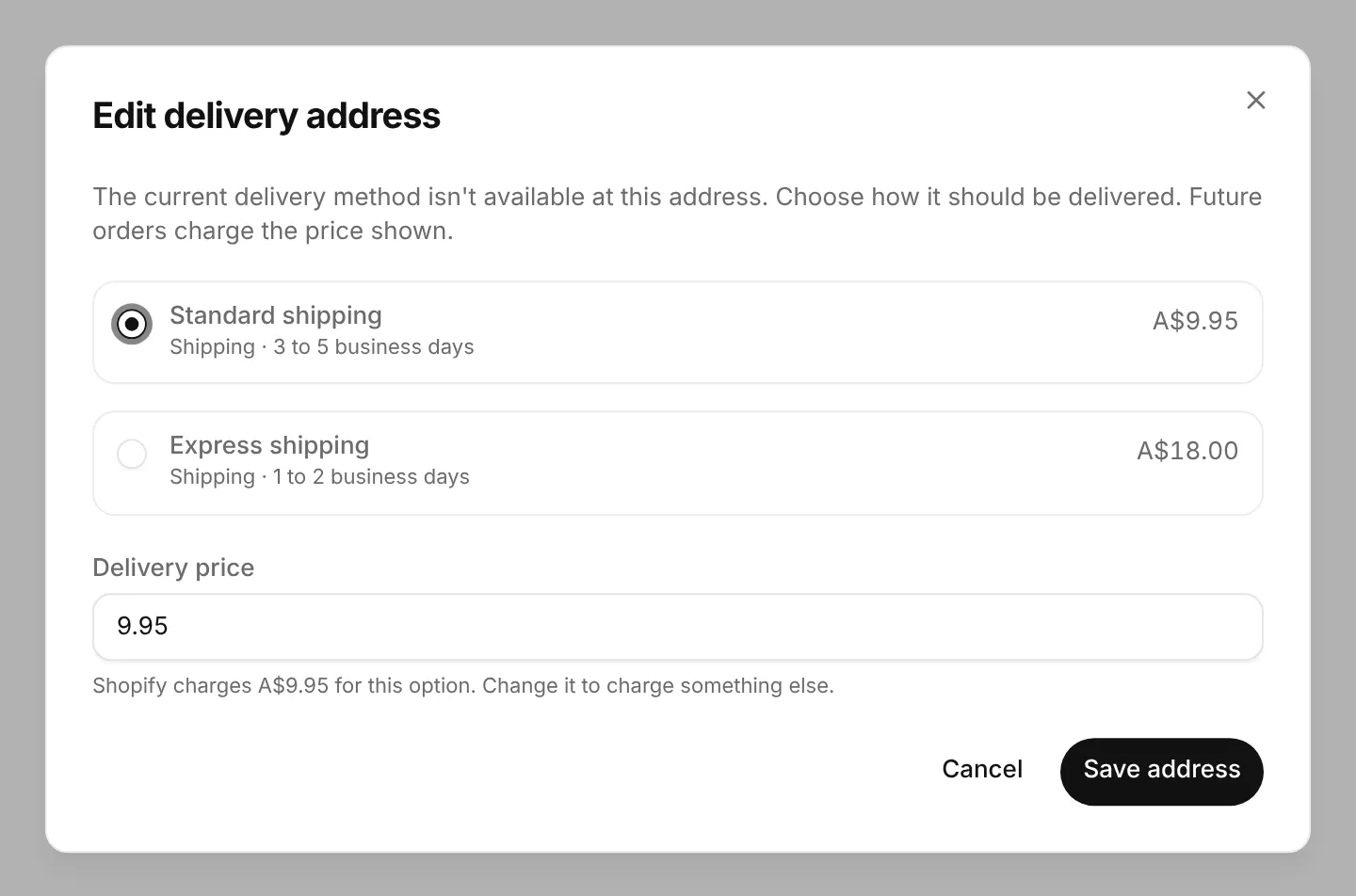
With Update all active subscriptions ticked, subscriptions whose method still works are saved straight away, and the choice only applies to the ones that need it.
In the portal
Section titled “In the portal”Your customer sees the same step, with Shopify’s prices. They can’t change the price. Picking one and pressing Save Address saves both.
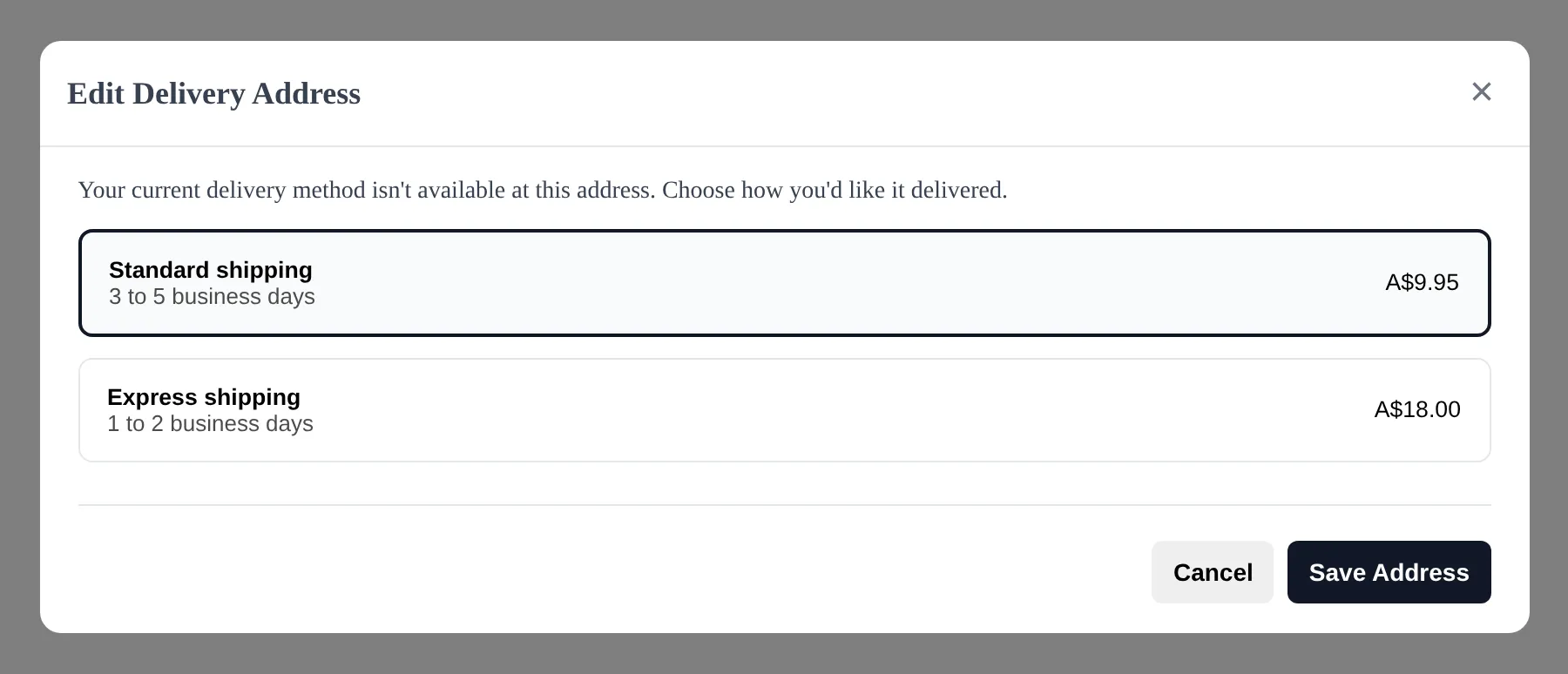
If nobody picks
Section titled “If nobody picks”Nothing changes. The subscription keeps its old address and method until someone finishes the step. One small side effect: a brand new address typed in is added to the customer’s Shopify address book.
Price after a move
Section titled “Price after a move”The new method’s Shopify price becomes the delivery price for future orders, unless a free delivery discount is on the subscription, which keeps it at 0. If you’d set a custom delivery price before, a move to a new method replaces it, so set it again from Change delivery method if you need to.
Reprice delivery for each order
Section titled “Reprice delivery for each order”If your Shopify rates go by weight or order value, turn on Reprice delivery so each order’s delivery follows what’s actually in it, after skipped items and one offs. See Reprice delivery for how it works and what you control.
What it means for you
Section titled “What it means for you”- No more surprise held orders from a move. A local delivery customer moving out of your zone is asked to pick shipping before the address saves, instead of their next order being held on billing day.
- Customers sort it themselves. Most moves happen in the portal, and the portal asks the question for you.
- Prices stay right. Switching method charges that method’s price from your Shopify settings, so you don’t undercharge shipping to a far away address.
- Nothing changes for most customers. If their method still works at the new address, the move is exactly as it was before.
If an order is held anyway (for example a location stops offering local delivery), it shows under Needs attention with a hint naming the delivery method.