

Store credit
Store credit is money a customer has to spend with you. It comes off their next subscription order automatically, so there are no codes to send and nothing for the customer to do.
Turning it on
Section titled “Turning it on”Store credit is on for every store. You’ll find its settings in Settings > Setup, under Store credit:
| Setting | What it does |
|---|---|
| Use credit on renewals | Credit comes off customers’ next subscription orders. Turn it off to stop spending credit; balances stay as they are |
| Most credit per order | The most credit one order can use. Leave it empty for no limit |
Adding or removing credit
Section titled “Adding or removing credit”Open a customer and go to their Credits tab, or open a subscription and find the Store credit card. Click Adjust, enter an amount and pick a reason:
- Goodwill: making up for a late or damaged box
- Refund: refunding part of an order as credit instead of to the card
- Promotion: a thank you or a campaign reward
- Correction: fixing a mistake
- Other: anything else. Add a note saying why
To remove credit, enter a negative amount. You can’t remove more than the customer has.
A different limit for one customer
Section titled “A different limit for one customer”To let one customer use more or less credit per order than the store’s Most credit per order, open their Store credit card and click Change next to Max per order. Set the amount and save. To go back to the store’s limit, open it again and click Use store default.
Made a mistake? Open the row’s menu in the credit history and choose Reverse. Nothing is deleted: a matching row is added, so the history stays complete. Credit spent on an order can’t be reversed.
How credit comes off an order
Section titled “How credit comes off an order”When a subscription renews, Gro takes the customer’s credit off that order before charging the card:
- Credit covers products, never delivery or tax.
- It never takes more than the Most credit per order limit, or the customer’s own limit when they have one.
- Anything left over carries on to the next order.
- Credit is only used on subscriptions in the same currency.
- If the customer has several subscriptions, whichever renews next uses it.
On the order in Shopify it shows as a Store credit discount. Credit only leaves the balance once the order is placed, so a failed payment, a skipped order or a cancellation never costs the customer their credit.
The next order on the subscription page and in the customer portal shows the credit coming off before it’s charged. With several subscriptions, the one that renews next shows the credit, and the others show only what will be left for them.
Ways customers earn credit
Section titled “Ways customers earn credit”Store credit plugs into the tools you already use, so there’s no separate set of rules to manage:
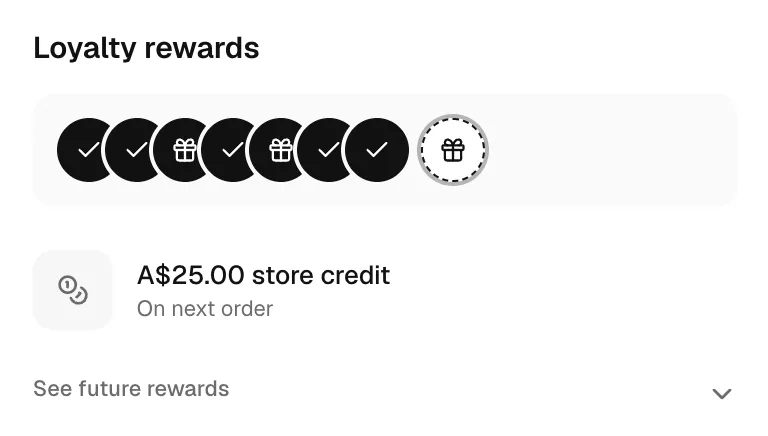
- Loyalty rewards: make a reward store credit instead of a gift, on any order number. Order 1 works as a welcome credit. See Rewards.
- Playbooks: add a Store credit offer to a cancel, skip or pause playbook, like “Stay and get $15 credit”. Accepting adds the credit. See Cancellation offers.
- Referrals: see below.
- By hand: see Adding or removing credit.
A store credit loyalty reward on a subscription:
Referrals
Section titled “Referrals”Referrers earn their reward as store credit. It works on any of their subscriptions, stacks with other credit, and waits on their account if they don’t have an active subscription right now. See Referrals.
In the customer portal
Section titled “In the customer portal”The Store credit tab shows customers their balance, what comes off their next order, and every time credit was added or spent. Customers see a plain reason, like Referral or Spent on order #1164, never your notes.
Shops on the standard portal layout get the tab automatically. If you’ve arranged your own layout, add the Store credit and Store credit history blocks in portal design. Both hide when store credit is turned off.
Link straight to it with ?tab=store-credit.
Keeping track
Section titled “Keeping track”The Store credit page in the sidebar lists every change across your store, with who made it and why. The cards at the top show:
- Unspent credit: what customers have left to spend
- Added, last 30 days: credit given in the last 30 days
- Removed, last 30 days: credit spent, removed or reversed in the last 30 days
Every change is also on the customer’s and subscription’s activity log.
Klaviyo
Section titled “Klaviyo”Each customer’s balance is on their Klaviyo profile as gro_credit_balance and gro_credit_currency, and an event is sent whenever credit is earned, changed or spent. Use them to remind customers they have credit waiting. See profile properties and event properties.
Gro Agent and AI assistants
Section titled “Gro Agent and AI assistants”Ask Gro Agent “How much credit does Jane have?” or “Give Jane $10 credit for the late delivery”. It checks with you before changing anything. The same tools are available to AI assistants through MCP.