

Add a form to your Shopify store
Every Gro form needs the forms app embed switched on in your theme. Popups and flyouts need nothing else. Embedded forms also need a block that marks where on the page the form sits.
The names in the theme editor depend on which Gro app you use:
| Gro app | App embed | Form block |
|---|---|---|
| Email & SMS | Gro Email signup forms | Gro Email signup form |
| Subscriptions | Gro signup forms | Gro signup form |
1. Turn on the app embed
Section titled “1. Turn on the app embed”You only do this once, for every form.
- Publish your form in Gro. On the Review step, click Open theme editor. It opens on App embeds.
- Switch on the Gro signup forms embed.
- Click Save.
The Review step shows a green “Gro forms app embed is on” note once Gro sees it on your live theme. You can also check it any time under Settings > Shopify.
2. Place an embedded form
Section titled “2. Place an embedded form”Skip this for popups and flyouts.
- In Gro, open the form and go to Design > Placement. Note the Container selector, for example
#gro-form. The part after the#is your Placement ID. - On the Review step, click Open theme editor. Shopify opens with the form block already added to your footer.
- Drag the block to wherever the form should sit. To add it somewhere else yourself, click Add block in any section, open the Apps tab and pick the form block.
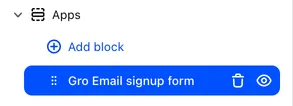
- Click the block and set Placement ID to your Placement ID, without the
#. - Click Save.
Until the form loads, the theme editor shows a dashed box saying Gro form ID "gro-form" will load here, so you can always see where the block is. Once the form loads, you see the real form right there in the editor.
Block settings
Section titled “Block settings”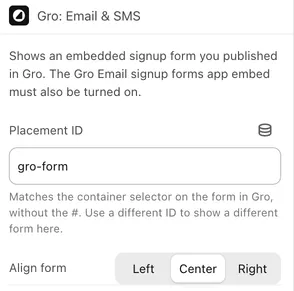
- Placement ID picks which form shows in this block. It must match the form’s container selector in Gro, without the
#. The default isgro-form. - Align form sets where the form sits across the width of the section: Left, Center or Right. It starts on Center.
The block always takes the full width of its section, and the form keeps the Max width you set under Style in Gro. Alignment shows when the section is wider than the form. On a phone the form usually fills the screen, so all three look the same there.
Show more than one embedded form
Section titled “Show more than one embedded form”Give each form its own container selector in Gro, like #footer-signup and #vip-signup. Then add one block per form and set each block’s Placement ID to match. A block whose Placement ID matches no published form stays empty on your store.
The form isn’t showing
Section titled “The form isn’t showing”- Check the app embed is on and that you clicked Save in the theme editor.
- Check the Placement ID matches the container selector exactly, without the
#. - Check the form is published. Drafts never show on your store.
- Check the targeting. A form set to hide from known subscribers won’t show to you if you’ve already signed up. Try a private browser window.
- Still stuck? Add
?gro_debug=1to any store URL. Gro then logs what it’s doing to the browser console, which helps support see what’s wrong.