

Simulating a flow
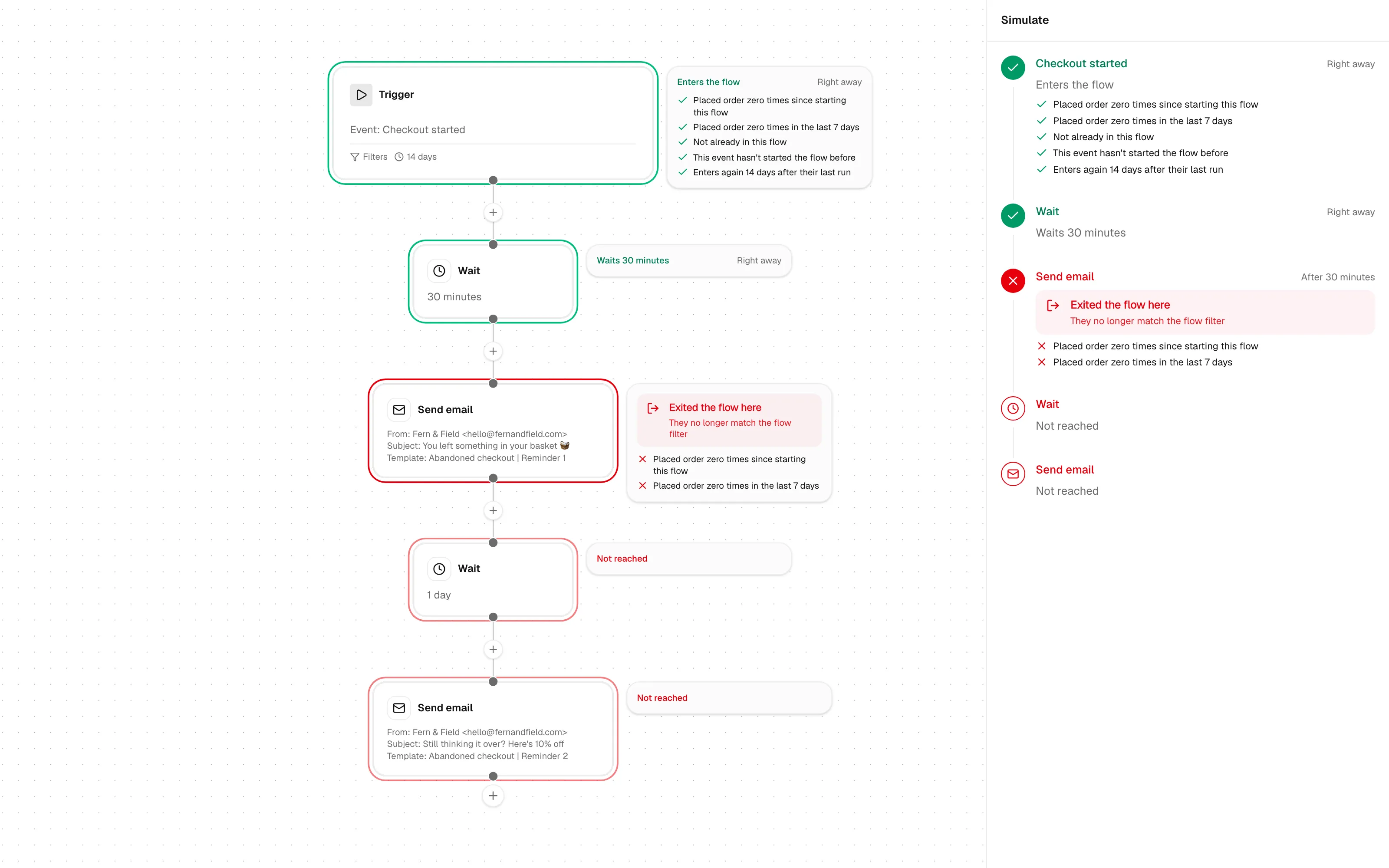
Simulate walks one of your customers through a flow as if it ran for them, so you can check a flow before it goes live or find out why someone didn’t get an email. Nothing is sent and nothing is saved.
Run a simulation
Section titled “Run a simulation”- Open the flow and click Simulate in the header.
- Under Customer, pick a real customer.
- For flows that start from an event, pick a Starting event. Leave it on Their latest event, or choose one of their past events to replay it.
- Click Simulate.
Simulate uses the saved flow, so save your changes first.
A simulation always uses the customer’s real data. If they have none of the events that start the flow, they don’t enter, and the result says so.
Reading the result
Section titled “Reading the result”The result shows twice: on the steps in the editor, and as a list in the Simulate panel.
- Green means they get through the step. A card beside it says what happens and when, for example “Waits 30 minutes” or “Would send to maya@example.com”.
- Amber means they get through, but something needs your attention, like an email missing its template or a customer who can’t get it.
- Red with an alert marks where they stop. Either They don’t enter this flow, with the reasons, or Exited the flow here.
- Red outline, Not reached marks every step after the one they left at.
Each step lists the rules it checked, ticked or crossed, so you can see exactly which one made the difference. Click a step’s name in the panel to open it in the editor, and click View on an email to see it as that customer would get it.
Simulate starts the clock at the moment of the starting event and moves it forward through each wait. Every check runs against the customer’s data as it stood at that moment, so replaying an old event gives the same answer the flow would have given then. A later step shows how long after the start it happens, for example “After 30 minutes”.
Splits
Section titled “Splits”A conditional, trigger or A/B split is always green when they reach it. The card shows which path they take and why, and the walk carries on down that path.
Why someone leaves a flow
Section titled “Why someone leaves a flow”If the flow has a Flow filter with Check before each step turned on, the filter is checked again before every step. Someone who stops matching leaves the flow at that step.
For example, an abandoned checkout flow with the filter “Placed order zero times since starting this flow” stops the moment they buy. Simulate shows that as Exited the flow here on the step they would have reached next, with the filter rule that failed crossed in red.
“Since starting this flow” only counts events after the flow started. The event that started the flow never counts, so a Placed order flow with “Placed order zero times since starting this flow” still lets that order in.
Simulating with Gro Agent and MCP
Section titled “Simulating with Gro Agent and MCP”Ask Gro Agent something like “Would Jane get the abandoned checkout flow?” and it runs the same simulation. AI tools connected through MCP can use the simulate_flow tool to do the same.