
Connect Gro to Claude, ChatGPT and Copilot
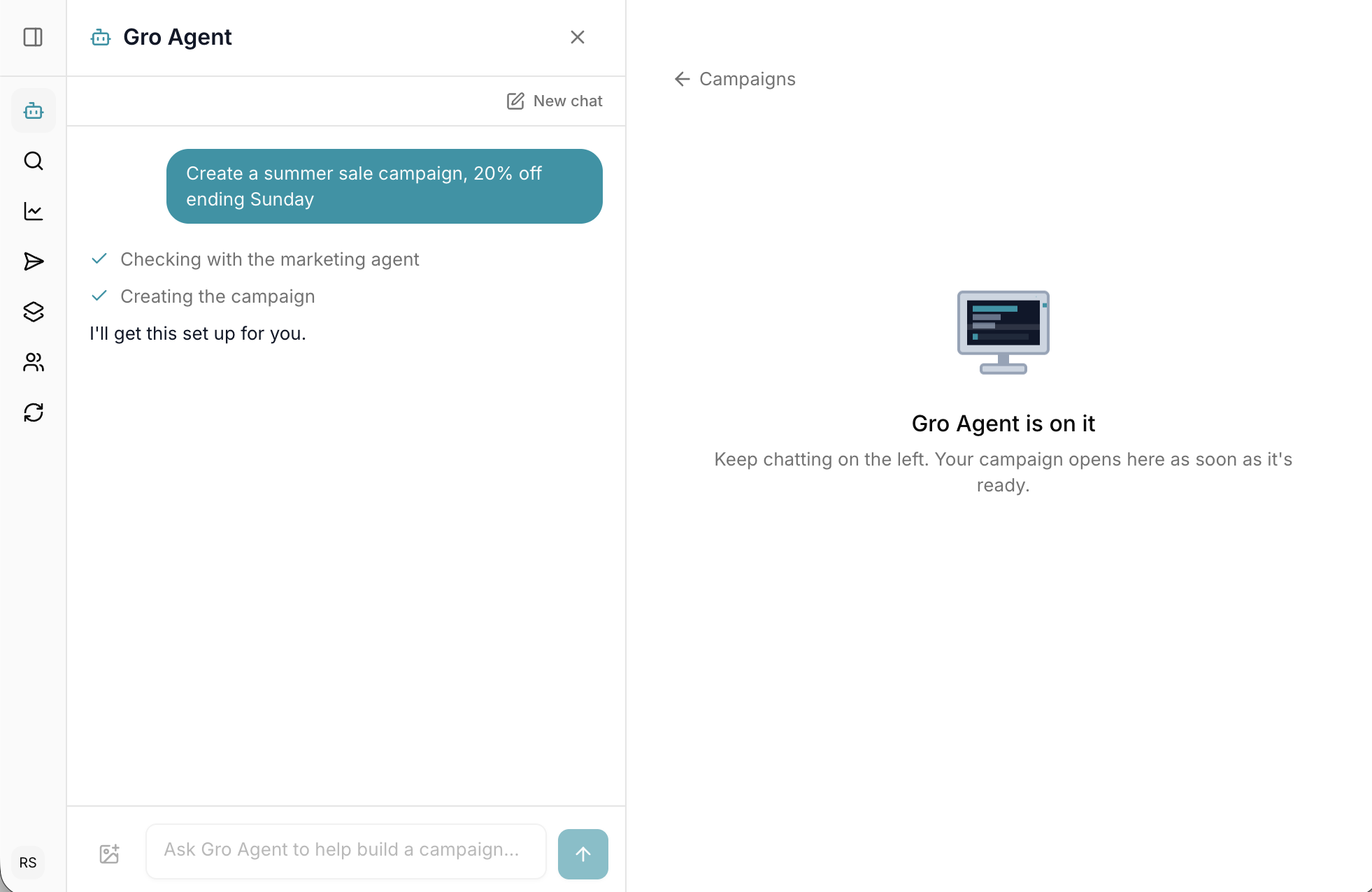
Gro now runs an MCP server, the open standard AI assistants use to talk to other tools. Connect Claude, ChatGPT, GitHub Copilot, Cursor or any other assistant that supports it and run your store from a chat.
You sign in with your normal Gro login, pick the store, and you’re connected. No API keys. Every action is confirmed with you first and shows up in your Gro activity feed under your name, the same as if you’d done it in the dashboard.
What this means for email and SMS
Your assistant can see your campaigns, segments, templates and brand kit, and can draft new emails that use your real products.
- “How did the Spring Sale campaign do? Opens, clicks, revenue.”
- “Which segment has the most people in it?”
- “Draft a win back email in our brand style using our three best sellers.”
- “Schedule the draft Autumn Restock campaign for Thursday at 9am.”
- “Why did this customer’s last email bounce?”
What this means for subscriptions
Your assistant can look up any subscriber, explain what’s happening with their subscription, and make the change for you.
- “How are subscriptions doing this month? Active, new, churned and lifetime value.”
- “Find jane@example.com’s subscription and tell me when her next box arrives.”
- “Move Jane’s next delivery to next Thursday morning.”
- “Skip Sam’s next order, he’s away for two weeks.”
- “Why are people cancelling? Top reasons for the last 90 days.”
- “How much revenue is due in the next 30 days?”
- “Send me a portal login link for order 1042’s customer.”
Getting connected
- Claude is a one click install from Settings then Connectors.
- Cursor, VS Code, Copilot and ChatGPT take the server URL. Steps for each are in the docs.
Read access and write access are separate permissions on your Gro role, so you can give a teammate an assistant that can answer questions but never change anything.
 ChatGPT
  Claude
  Perplexity
  Grok
Grok